SocialFlame UK — Resource Hub
Console Streaming without a PC - PlayStation
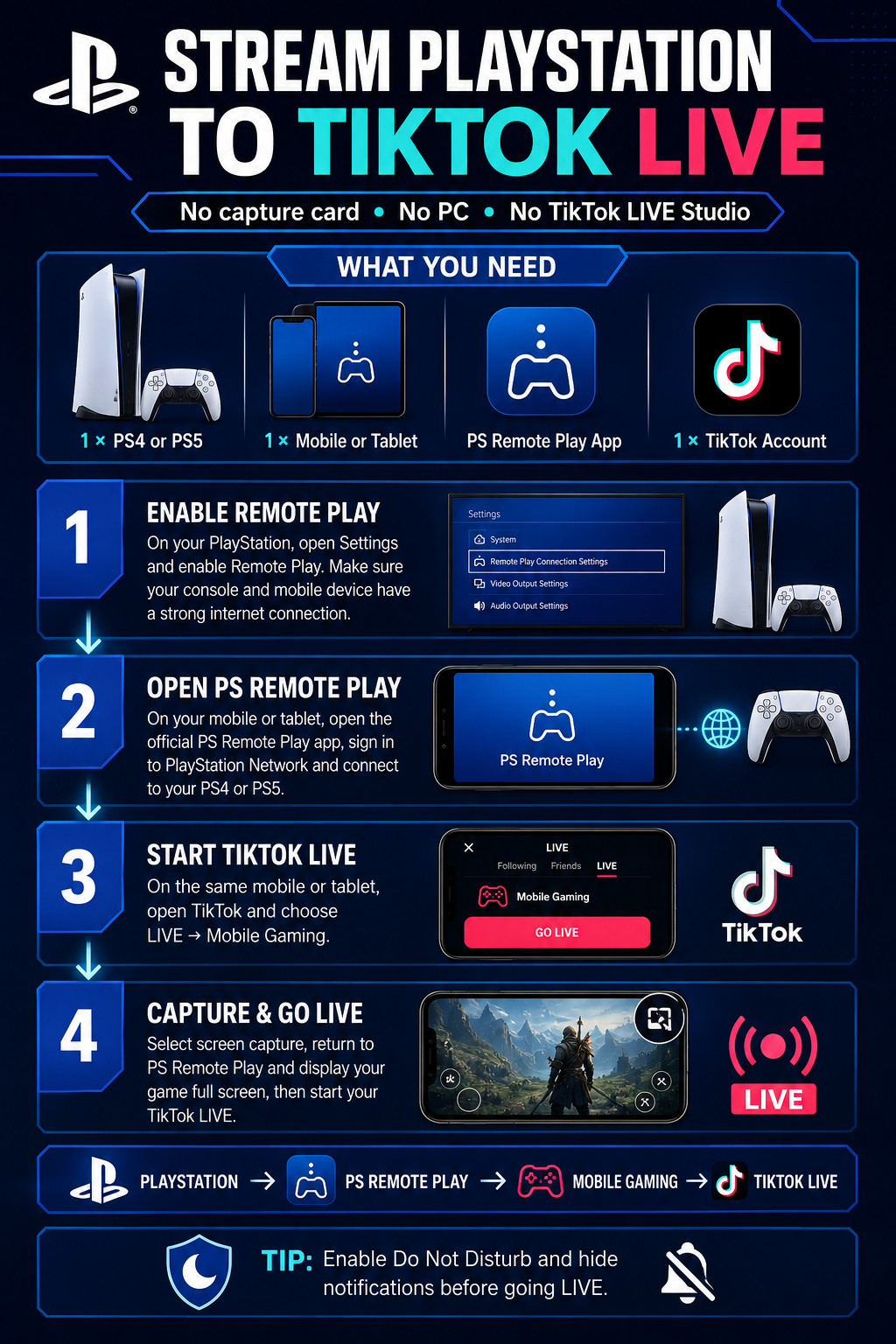
You can stream PS4 or PS5 gameplay to TikTok LIVE using the official PS Remote Play application and TikTok’s Mobile Gaming feature. You will not need a computer, capture card or TikTok LIVE Studio.
WHAT YOU NEED
• 1 × PS4 or PS5 console
• 1 × mobile phone or tablet
• The official PS Remote Play application
• 1 × PlayStation Network account
• 1 × TikTok account with LIVE and Mobile Gaming access
• A stable internet connection
STEP 1: ENABLE REMOTE PLAY
On your PlayStation, open Settings and locate the Remote Play settings.
Enable Remote Play and make sure your console is connected to the internet. Your mobile device must also have a strong internet connection.
If you want Remote Play to connect while the console is in Rest Mode, enable the appropriate network and power settings on your PlayStation.
STEP 2: SET UP PS REMOTE PLAY
Install and open the official PS Remote Play application on your mobile phone or tablet.
Sign in using the PlayStation Network account connected to your console. Select your PS4 or PS5 and wait for the application to establish a connection.
STEP 3: CHECK YOUR GAMEPLAY
Start the game you want to broadcast.
Confirm that the gameplay picture, controls and sound are working correctly through PS Remote Play. Switch the Remote Play display to full-screen mode where possible.
STEP 4: START A MOBILE GAMING LIVE
On the same mobile phone or tablet, open TikTok.
Tap the Create button, select LIVE and choose Mobile Gaming. Add your LIVE title and configure your audience and moderation settings.
STEP 5: ENABLE SCREEN CAPTURE
Start TikTok’s screen-capture broadcast when prompted.
Return to the PS Remote Play application and display your game in full-screen mode. TikTok will capture your device’s screen and broadcast your PlayStation gameplay.
IMPORTANT TIPS
• Enable Do Not Disturb before starting to prevent private notifications from appearing.
• Hide notification previews and close private applications.
• Keep your mobile device connected to a charger.
• Use a strong 5 GHz Wi-Fi or wired console connection for better performance.
• Wear headphones to reduce echo and audio feedback.
• Test your Remote Play connection before beginning your TikTok LIVE.
• Remote Play performance will depend on the speed and stability of your network.
PlayStation → PS Remote Play → TikTok Mobile Gaming → TikTok LIVE